How to use Workspace on a Samsung Smart TV
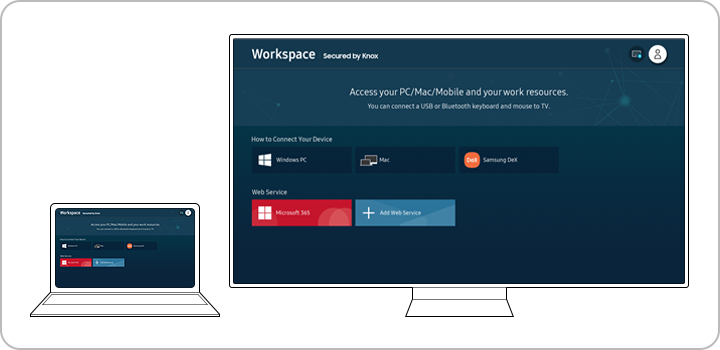
How to Use Workspace on Your Samsung Smart TV
The Samsung Smart TV Workspace feature allows you to turn your TV into a powerful workstation by enabling remote PC access, screen sharing, Samsung DeX, and Microsoft 365 integration. This guide provides detailed instructions for each function to enhance your productivity and entertainment experience.
1. What Is Samsung Smart TV Workspace?
The Workspace feature on Samsung Smart TVs transforms your television into a versatile workstation. It supports four primary functions:
- Remote PC control via Easy Connection
- Screen sharing between your PC and TV
- Samsung DeX for mobile-to-TV productivity
- Direct access to Microsoft 365 apps
2. How to Use Easy Connection for Remote PC Control
Easy Connection lets you control your Windows PC directly from your Samsung Smart TV. Follow these steps:
- From the Home menu, select Source, then navigate to Connected Devices > Workspace.
- Select Windows PC from the Workspace menu. A setup guide will appear.
- Download the required app using the link displayed on the guide screen.
- Log in to your PC using the same Samsung account linked to your TV.
- Select your connected PC's icon when prompted.
Note: Easy Connection is only compatible with Windows 10.
3. How to Enable Screen Sharing Between PC and TV
Screen Sharing allows you to mirror your PC's display onto your TV using Wi-Fi Direct. Here's how:
- On your PC, open the Management Center or Device from the taskbar notifications.
- Select Connect and choose your TV from the list of available devices.
Note: Screen Sharing is only supported on Windows 10. There is no resolution limit, as the PC screen is shared in real time.
4. How to Use Samsung DeX on Your Smart TV
With Samsung DeX, you can use your Galaxy smartphone as a PC on your TV. Follow these steps:
- Select Samsung DeX from the Workspace menu and follow the on-screen instructions.
Note: Ensure your Galaxy device supports wireless DeX via Wi-Fi. Once connected, the pairing information is saved on your TV for future use.
5. How to Access Microsoft 365 on Your Smart TV
You can access Microsoft 365 apps like Word, Excel, and PowerPoint directly from your TV's Workspace menu. Here's how:
- Select the Microsoft 365 icon in the Workspace menu.
- Enter your Microsoft Office account credentials to log in.
Note: Some symbols may not display correctly due to font limitations in Samsung One UI.
6. Supported Samsung Smart TV Models
The Workspace feature is available on select Samsung Smart TV models. Refer to your user manual or the official Samsung website for compatibility details.
7. Additional Things to Check
Ensure your Samsung Smart TV is running the latest software version for optimal performance. If you encounter issues, check for updates in the Settings > Support > Software Update menu.
Related Samsung Support Topics
Thank you for your feedback!
Please answer all questions.