How to use Smart Calibration on The Freestyle projector

How to Use Smart Calibration on Samsung The Freestyle
Smart Calibration on Samsung The Freestyle automatically adjusts picture quality using your smartphone's sensors, ensuring optimal image performance in Dynamic, Standard, and Movie modes. This feature works seamlessly when both devices are connected to the same Wi-Fi network and supports both Samsung Galaxy and iPhone models.
1. What Is Smart Calibration on The Freestyle?
Smart Calibration is a feature that enhances picture quality on Samsung The Freestyle by leveraging your smartphone's sensors. It ensures consistent image performance on colored walls and adjusts settings for different picture modes. The calibration process takes just 15–30 seconds and requires both devices to be on the same Wi-Fi network.
2. How to Start Smart Calibration Using the SmartThings App
Follow these steps to use Smart Calibration on your Samsung The Freestyle:
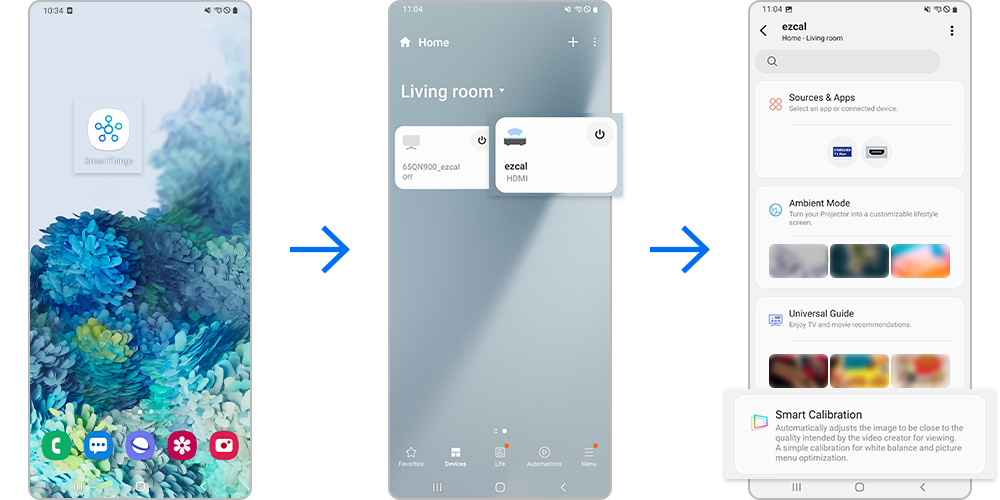
- Open the SmartThings app on your smartphone and register your The Freestyle device.
- Connect both your smartphone and The Freestyle to the same Wi-Fi network.
- Select the Smart Calibration button in the SmartThings app and tap Start Calibration.
- Follow the on-screen instructions: Position your smartphone 1–3 meters from The Freestyle, align the displayed rectangles within the frame, and tap Start.
- Wait for the calibration to complete, then compare the before-and-after results and tap Done.
3. Additional Things to Check
- Ensure both devices are connected to the same Wi-Fi router (access point).
- Perform calibration in a dark environment for the best results, as performance may vary depending on wall color.
- If calibration fails, restart both devices and retry the process.
4. Supported Samsung Devices
Smart Calibration is compatible with the following devices:
- Samsung Galaxy models released after January 2019 (S, Note, Fold, Z Flip series).
- iPhone models released after January 2019 with Face ID functionality.
Note: Supported devices may be updated or changed over time.
5. Why Reset Picture Settings Before Calibration?
Resetting picture settings ensures a clean baseline for calibration. To reset, go to Menu > Settings > All Settings > Picture > Expert Settings > Reset Picture on your The Freestyle.
6. Related Samsung Support Topics
Thank you for your feedback!
Please answer all questions.