How to use Smart Calibration on a Samsung Smart TV
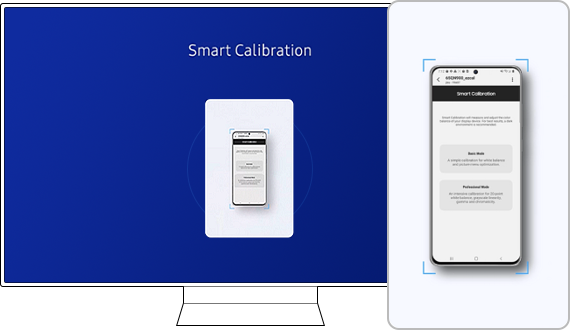
Smart Calibration on Samsung Smart TVs uses your smartphone's sensors to automatically adjust picture quality for a better viewing experience. This feature is ideal for optimizing movie mode and enhancing overall display performance.
1. What is Smart Calibration on Samsung Smart TVs?
Smart Calibration is an advanced feature that leverages the sensors in your smartphone to fine-tune the picture quality on your Samsung Smart TV. By connecting your TV and smartphone to the same Wi-Fi network, the app analyzes and adjusts settings such as brightness, contrast, and color accuracy. This ensures optimal image quality, especially for movie mode, in just a few minutes.
2. How to Use Smart Calibration on Your Samsung Smart TV
Follow these steps to activate Smart Calibration using the SmartThings app:
- Open the SmartThings app on your smartphone and ensure both your TV and phone are connected to the same Wi-Fi network.
- Register your TV in the SmartThings app and select Smart Calibration from the menu.
- Choose between Basic Mode (quick calibration in 15–30 seconds) or Professional Mode (detailed optimization in 5–8 minutes). Note that Professional Mode is available for specific models like the QN900B/QN800B/QN700B/QN95B/QN90B.
- Position your smartphone's rear camera 1–3 cm away from the white rectangle on your TV screen and press Start. Hold your phone steady or use a tripod for Professional Mode.
- Wait for the calibration process to complete, then compare the before-and-after results. Select Done to finalize.
After calibration, your TV's Picture Mode will automatically switch to Movie (Calibrated). To revert to the original settings, navigate to Menu > Settings > All Settings > Picture > Expert Settings > Reset Picture.
3. Why Use Smart Calibration?
- Enhances picture quality by adjusting brightness, contrast, and color accuracy.
- Optimizes movie mode for a cinematic viewing experience.
- Works seamlessly with both Samsung Galaxy phones and iPhones.
4. Supported Samsung Devices for Smart Calibration
Smart Calibration is compatible with the following devices:
- TVs and Monitors: QN900B/QN800B/QN700B/QN95B/QN90B, S95B/Q80B/Q70B/Q60B/The Serif/The Frame/The Sero/Smart Monitor (M70B or higher), Gaming Monitor (G65NB or higher).
- Smartphones: Galaxy models released after January 2019 (S, Note, Fold, Z Flip), and iPhones released after January 2019 with Face ID.
Note: Supported devices may vary over time. Refer to your user manual for the latest information.
5. Troubleshooting Smart Calibration Issues
If Smart Calibration isn't working, try these solutions:
- Ensure your TV and smartphone are connected to the same Wi-Fi network.
- Verify that your devices are compatible with Smart Calibration.
- Update your TV's software to the latest version via Menu > Settings > Support > Software Update.
- Restart both your TV and smartphone before attempting calibration again.
6. Related Samsung Support Topics
Thank you for your feedback!
Please answer all questions.