How to use Self Diagnosis on a Samsung Smart TV
How to Use Self Diagnosis on Samsung Smart TV
If your Samsung Smart TV is experiencing issues with picture quality, sound, HDMI connections, or Smart Hub functionality, the built-in Self Diagnosis tool can help identify and resolve common problems. This feature allows you to run automated tests to detect hardware or software issues quickly and efficiently.
1. Accessing Self Diagnosis on Your Samsung Smart TV
To access the Self Diagnosis tool, follow these steps:
- Press the Home button on your Samsung remote control.
- Navigate to and select Settings (gear icon).
- Go to General > Device Care.
- Select Self Diagnosis to begin troubleshooting.
2. Running Video and Picture Tests
Use the Video and Picture tests to check for display-related issues:
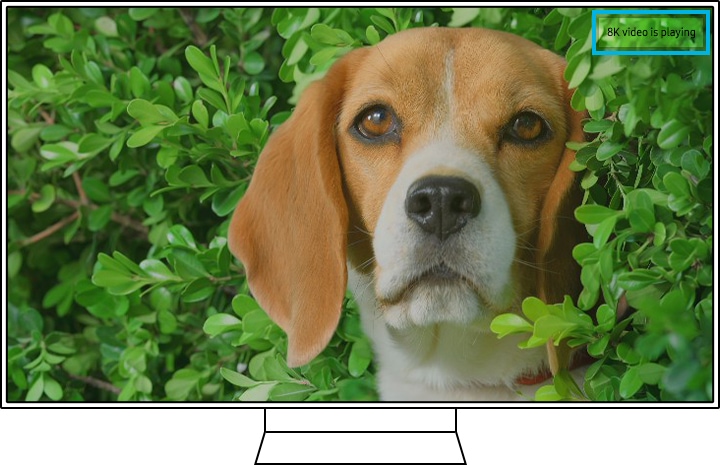
- Video Test: Play the test video to evaluate the highest-quality video output your TV can handle. Inspect the screen for any visual flaws or distortions.
- Picture Test: Display the test photo and examine the screen for 5 seconds. If the image appears normal, confirm by selecting Yes.
3. Conducting Sound Tests
To check for audio issues, follow these steps:
- Select Sound Test. A melody will play automatically.
- If the sound plays clearly, select Yes. If the Self Diagnosis shows no issues but you still experience sound problems, verify your external devices and connections.
4. Performing HDMI Troubleshooting
For HDMI-related issues, use the HDMI Troubleshooting feature:
- Select the external device you want to diagnose.
- Check if the screen and sound from the connected device work properly. Ensure the device is unmuted.
- Review the Signal Information for the connected device.
- Adjust the HDMI Delay Level if you experience lip-sync issues. Set it to Slow 1 or Slow 2 for better synchronization.
5. Running Smart Hub Connection Tests
To test Smart Hub connectivity:
- Select Smart Hub Connection Test. This may take time depending on your network status.
- If issues persist, reset Smart Hub settings by entering a 4-digit code. Note that this will erase all Smart Hub settings, downloaded apps, and stored accounts.
6. Supported Samsung Smart TV Models
The Self Diagnosis feature is available on select Samsung Smart TV models, including recent releases such as the QLED, Neo QLED, and Micro LED series. Refer to your user manual for model-specific details.
7. Additional Things to Check
If Self Diagnosis does not resolve your issue, consider these troubleshooting steps:
- Ensure your Samsung Smart TV is running the latest software version by checking for updates in Settings > Support > Software Update.
- Verify that all cables, including HDMI and power cords, are securely connected and undamaged.
- Restart your TV and external devices to refresh connections and resolve temporary glitches.
8. Why the Issue Happens
Common causes of Smart TV issues include:
- Outdated software versions leading to compatibility issues.
- Loose or damaged cables affecting signal transmission.
- Network connectivity problems impacting Smart Hub performance.
Related Samsung Support Topics
Thank you for your feedback!
Please answer all questions.