How to troubleshoot an audio delay
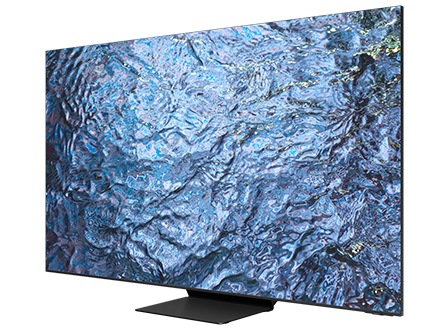
Why is there an audio delay on my Samsung TV?
Audio delay on your Samsung TV can occur due to external device connections, streaming services, or outdated firmware. Follow this guide to resolve sync issues and improve your viewing experience.
1. Why does an audio delay occur?
Audio delays can happen for several reasons:
- Broadcasting signal differences between video and audio processing speeds.
- Poor connections with external devices like soundbars or set-top boxes.
- Streaming or wireless transmission causing slower data transfer.
- Unsupported or incompatible video codecs in downloaded content.
2. How to fix audio delay on your Samsung TV
- Check the connection between your TV and external devices. Ensure cables are secure and devices are properly powered.
- Adjust the audio transfer rate:
- Go to Settings > Sound > Audio Settings.
- Find the Digital Audio Output option.
- Use the slider to increase or decrease the audio output.
- Update your TV's firmware to the latest version. Go to Settings > Support > Software Update.
- Verify the video codecs of downloaded content. Refer to your TV's user manual for supported formats.
3. Additional things to check
- Ensure your streaming service or app is up to date.
- Test the audio delay with different content sources to isolate the issue.
- If using a soundbar, check its settings for audio sync adjustments.
4. Supported Samsung TV models
This guide applies to most Samsung Smart TVs, including QLED, Neo QLED, and The Frame series. For model-specific instructions, refer to your user manual.
5. Related Samsung support topics
Thank you for your feedback!
Please answer all questions.