How to charge and use a Samsung SolarCell Remote
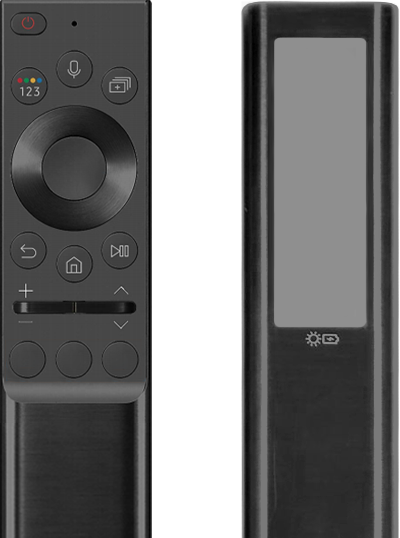
How to Charge and Use the Samsung SolarCell Remote
The Samsung SolarCell Remote offers an eco-friendly way to power your Smart TV without frequent battery replacements. It uses solar energy or USB-C charging to keep your remote functional for up to two years on a full charge. Learn how to charge, pair, and maintain your remote for optimal performance.
1. What Are the Benefits of a Solar Remote?
The Samsung SolarCell Remote features a built-in solar panel that absorbs indoor or outdoor light to charge its internal battery. This eliminates the need for disposable batteries, reducing environmental waste. A fully charged battery can last up to two years, depending on usage. The remote also supports USB-C charging for faster power-ups when needed.
- Reduces reliance on disposable batteries, contributing to sustainability.
- Charges using ambient light, making it convenient for everyday use.
- Supports USB-C charging for quick power-ups when solar charging isn't sufficient.
2. How Do I Charge My Samsung SolarCell Remote?
There are two primary ways to charge your Samsung SolarCell Remote: using solar energy or a USB-C cable.
Option 1: Fast Charging Using a USB-C Connector
For the first use or when the battery is critically low, use a USB-C cable to charge your remote quickly.
- Connect the USB-C cable to the port located at the bottom of the remote control.
- The LED indicator on the front of the remote will turn on when charging begins and will turn off once charging is complete.
- Avoid using the remote while charging to ensure faster charging times.
- Note that the USB-C cable and charger are not included with the remote.
Option 2: Eco-Friendly Charging Using Solar Cells
To charge your remote using solar power, place it face-down in direct sunlight or under bright indoor lighting to expose the solar panel on the back.
- Ensure the remote is not misplaced while charging via solar power.
3. How Do I Pair My Samsung SolarCell Remote with My Smart TV?
Your Samsung SolarCell Remote should automatically pair with your Smart TV when you turn it on and press any button. If pairing fails or disconnects during use, follow these steps:
- Turn on your Smart TV.
- Press and hold the Return button and the Play/Pause button simultaneously for more than 3 seconds.
- Follow the on-screen instructions to complete the pairing process.
- For optimal performance, keep the TV and remote within 6 meters of each other during pairing.
4. How Do I Check the Battery Level of My Samsung SolarCell Remote?
To monitor your remote's battery status, follow these steps:
- Turn on your Smart TV to ensure automatic pairing with the remote.
- Press the Home button on the remote and navigate to Settings.
- Go to General > Power and Energy Saving > Available Remote Battery to view the current battery level.
- Note that battery level monitoring is only available on compatible eco-friendly remote models.
5. What Should I Do If My Remote Is in a Low Battery State?
If your remote's battery is critically low, it may not respond to button presses, and the LED indicator will flash for about 3 seconds. To resolve this:
- Press and hold the Return button and the Enter button simultaneously for about 10 seconds to reset the remote.
- Re-pair the remote with your TV using the steps outlined in Section 3.
- This "lock" mechanism protects battery performance and ensures longevity.
6. Supported Samsung Devices
The Samsung SolarCell Remote is compatible with select Smart TV models. Refer to your user manual or the product specifications page to confirm compatibility with your device.
Related Samsung Support Topics
Thank you for your feedback!
Please answer all questions.