Guide to using SmartThings on your Samsung TV
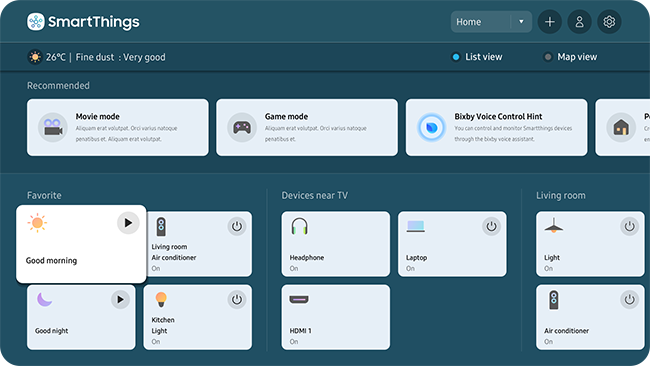
SmartThings on your Samsung TV allows seamless integration and control of your smart home devices, enhancing convenience and personalization. Follow this guide to connect, manage, and optimize your smart home ecosystem using your TV.
1. How to Connect and Use Devices via TV SmartThings
To connect and manage smart devices using the SmartThings app on your Samsung TV, follow these steps:
- Enable the SmartThings Hub feature on your TV by navigating to Menu > Connected Devices > SmartThings.
- Open the SmartThings app on your mobile device, tap the + icon, and select Device.
- Choose your device brand or type, set the location and room, and tap Next.
- Log in to the same Samsung account on your TV and mobile device to sync registered devices.
2. Why Does the SmartThings Hub Feature Work on My TV?
The SmartThings Hub feature on your Samsung TV connects IoT devices like light bulbs, plugs, and sensors via Wi-Fi or cloud-to-cloud connections. It supports seamless integration with thousands of devices from various smart home brands.
- The built-in hub feature eliminates the need for external hardware.
- Devices can be controlled through a unique map view or list view.
- Bixby's Always On Voice feature allows control even when the TV is off.
3. Supported Samsung TV Models for SmartThings Hub
The SmartThings Hub feature is available on Samsung TVs and Smart Monitors released in 2022, including:
QN900B, QN800B, QN700B, QN95B, S95B, QN90B, QN85B, Q80B, Q70B, Q60B, BU8, The Serif, The Frame, The Sero, and Smart Monitor (M50B and above).
4. How to Control Source Devices via SmartThings
Source devices, such as game consoles or DVD players, can be controlled through the SmartThings app on your TV:
- Select the SmartThings app from the TV menu.
- Choose the desired device from the list.
5. How to Control Legacy Devices via SmartThings
Legacy devices, like air conditioners or robot vacuum cleaners, can be controlled using the IR remote control:
- Point the IR remote at the device and press the power button.
- Follow the on-screen prompts to register the device in the SmartThings app.
- Compatible functions include power toggle, temperature adjustment, and fan speed control.
- Supported brands include Samsung, LG, Panasonic, and more.
6. How to Add Bluetooth Devices via SmartThings
Bluetooth devices, such as speakers or keyboards, can be connected to your TV using the SmartThings app:
- Select Add Device in the SmartThings app.
- Choose your Bluetooth device and follow the registration steps.
7. How to Use Music Wall via SmartThings
The Music Wall feature allows you to play music from your mobile device and enjoy visual effects on your TV:
- Select Add Device in the SmartThings app.
- Connect your mobile device via Bluetooth.
- Use the Sound Mirroring menu to start the Music Wall.
8. How to Use Map View in SmartThings
The Map View feature provides an intuitive layout of your smart home devices:
- Select Map View in the SmartThings app.
- Control devices by short pressing or adjust their locations.
9. How to Enable Notifications and 2-Way Doorbell Talk
Set up notifications and 2-way doorbell talk for enhanced security:
- Open the SmartThings app and select Settings.
- Choose Notification and select your doorbell.
- Enable notifications for doorbell presses or motion detection.
10. How to Control SmartThings with Bixby
Use Bixby to control your smart home devices with voice commands:
- Set up Bixby in the Voice menu.
- Say commands like "Hi, Bixby. Turn on the air purifier."
Thank you for your feedback!
Please answer all questions.