How to disable Autorun Multi View on a Samsung Smart TV
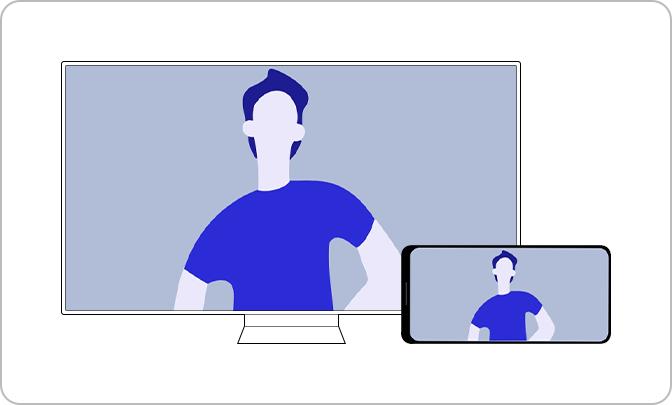
How to Disable Autorun Multi View on Samsung Smart TV
To disable the Autorun Multi View feature on your Samsung Smart TV, navigate to the TV's settings menu and turn off the Autorun Multi View Mirroring option. This allows you to view your mobile device's screen in full screen instead of the split-screen Multi View layout.
1. Why is Multi View Enabled by Default?
Multi View is enabled by default to provide a seamless viewing experience when mirroring your mobile device to your Samsung Smart TV. It splits the screen to display both the TV content and your mobile device's screen simultaneously.
- Multi View is useful for multitasking, such as watching TV while browsing on your phone.
- Some apps, like YouTube, automatically use Multi View when casting content.
2. How to Disable Autorun Multi View Mirroring
- Turn on your Samsung Smart TV and ensure your mobile device is connected to the same Wi-Fi network.
- Open the Settings menu on your TV by pressing the Home button on the remote and selecting the gear icon.
- Navigate to the General or Connections tab, depending on your TV model.
- Select the Mirroring or Multi View option.
- Find the Autorun Multi View Mirroring toggle and switch it to Off.
- Mirror your mobile device to the TV again to confirm the change.
3. Supported Samsung Smart TV Models
The Autorun Multi View feature is available on select Samsung Smart TV models released in 2022 and later. Check your TV's user manual or specifications to confirm compatibility.
4. Additional Things to Check
If disabling Autorun Multi View doesn't resolve your issue, consider the following:
- Ensure your TV and mobile device are running the latest software versions.
- Restart both devices to refresh their connections.
- Verify that your mobile device supports screen mirroring and is compatible with your TV model.
5. When Updates May Not Appear
Software updates for your Samsung Smart TV may not appear if:
- Your TV is connected to an unstable or slow internet connection.
- The TV's software is already up to date.
- Regional restrictions prevent updates from being pushed to your device.
6. Related Samsung Support Topics
Thank you for your feedback!
Please answer all questions.