Galaxy device can't make or receive calls?
Why can't my Samsung Galaxy device make or receive calls?
If your Samsung Galaxy device is unable to make or receive calls, the issue could stem from network connectivity, SIM card issues, device settings, or carrier-related problems. Follow this guide to identify and resolve call functionality issues on your Galaxy phone.
1. Why is my Samsung Galaxy phone not making or receiving calls?
Call issues on Samsung Galaxy devices often arise from:
- Poor cellular signal or network outages
- Faulty or improperly inserted SIM card
- Outdated software or carrier settings
- Airplane mode or incorrect network settings
- Call-blocking features enabled on the device
- Carrier-specific account or service issues
2. How do I check for software updates on my Samsung Galaxy device?
- Open the Settings app on your Samsung Galaxy device.
- Scroll down and select Software Update.
- Tap Download and Install to check for available updates.
- Follow the on-screen instructions to complete the update process.
Ensure your device runs the latest software version to avoid compatibility issues with carrier networks and call services.
3. How do I check my cellular coverage and service status?
Call issues may occur due to poor signal strength or carrier service disruptions. Here's how to verify:
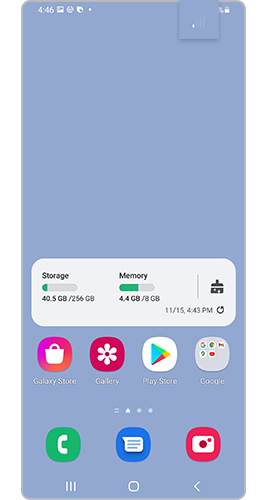
- Look at the network bars in the top-right corner of your screen. Few or no bars indicate weak signal strength. Move to an area with better coverage.
- Confirm your account is active and in good standing with your carrier.
- Restart your device to refresh network connections and resolve temporary signal issues.
4. How do I turn off Airplane mode on my Samsung Galaxy device?
- Open the Settings app on your device.
- Go to Connections or Network and Internet, depending on your device model.
- Find Airplane Mode and toggle it off.
- Wait a few seconds for the device to reconnect to the cellular network.
Airplane mode disables all wireless communication, including cellular calls. Ensure it's turned off for normal call functionality.
5. How do I check if my Samsung Galaxy device is blocking unknown or private calls?
Call-blocking settings may prevent incoming calls from unknown or private numbers. To disable call blocking:
- Open the Phone app on your device.
- Tap the three-dot menu icon in the top-right corner.
- Select Settings or Call Settings.
- Look for Call Blocking or Blocked Calls and disable any active filters.
Ensure no call-blocking features are interfering with incoming calls.
6. How do I check my SIM card for issues on my Samsung Galaxy device?
A damaged or improperly installed SIM card can cause call failures. Here's what to do:
- Power off your Samsung Galaxy device.
- Remove the SIM card tray using the provided eject tool or a paperclip.
- Inspect the SIM card for visible damage, dirt, or bending.
- Reinsert the SIM card firmly into the tray and ensure it fits properly.
- Reinsert the tray into your device and power it back on.
If the issue persists, test the SIM card on another compatible device to confirm its functionality.
Supported Samsung Galaxy devices include Galaxy S24, Galaxy S25, Galaxy S26, Galaxy Z Fold, Galaxy Z Flip, and Galaxy A series models.
7. When should I contact my carrier for call issues?
Contact your carrier if:
- You recently switched carriers and haven't activated your device.
- Your account has been suspended or restricted.
- The issue persists after trying all troubleshooting steps.
Carriers can assist with account activation, network programming, and service outages.
8. Additional things to check
Consider these additional troubleshooting steps:
- Clear the cache of the Phone app to resolve software glitches.
- Test call functionality using Wi-Fi Calling if available.
- Ensure your device supports your carrier's network bands.
- Check for carrier-specific APN settings in your device's network configuration.
Related Samsung support topics
Thank you for your feedback!
Please answer all questions.