How to fix microphone or speaker issues on a Galaxy phone
Why is my Samsung Galaxy microphone or speaker not working during calls?
If you're experiencing issues with your Samsung Galaxy microphone or speaker during calls, the problem could stem from physical obstructions, software glitches, or network-related factors. Follow these troubleshooting steps to resolve the issue quickly and effectively.
1. Check for Physical Obstructions
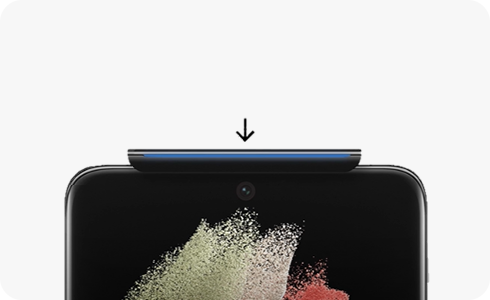
Ensure that the microphone and speaker on your device are not blocked or covered. A screen protector, case, or debris can interfere with sound quality.
- Inspect the microphone and speaker grilles for dust or obstructions.
- Remove any accessories like cases or screen protectors temporarily to test.
2. Update Your Device Software
Outdated software can cause microphone or speaker issues. Ensure your device is running the latest version.
- Go to Settings > Software Update.
- Tap Download and Install to check for updates.
- Follow the on-screen instructions to install any available updates.
3. Increase Call Volume
If you can't hear the caller, increase the volume during the call.
- Press the volume up button during a call to maximize the volume.
- Note that the in-call volume can only be adjusted during a call.
4. Restart Your Device
A simple restart can resolve temporary software glitches affecting the microphone or speaker.
- Press and hold the power button until the power menu appears.
- Tap Restart and confirm.
- Test the microphone and speaker after the device restarts.
5. Test in Safe Mode
Some third-party apps may interfere with the microphone or speaker. Booting into Safe Mode helps identify if an app is causing the issue.
- Press and hold the power button until the power menu appears.
- Tap and hold Power Off until the option to reboot in Safe Mode appears.
- Tap Safe Mode to confirm.
- Test the microphone and speaker in Safe Mode.
- If the issue resolves in Safe Mode, a downloaded app is likely the cause. Uninstall recently installed apps to resolve the issue.
6. Disable Wi-Fi Calling
A poor Wi-Fi connection can affect call quality. Turn off Wi-Fi Calling to test.
- Go to Settings > Connections > Wi-Fi Calling.
- Toggle off Wi-Fi Calling.
- Test the microphone and speaker over cellular network.
7. Check Mute All Sounds Settings
Ensure that "Mute All Sounds" is not enabled, which can silence call audio.
- Go to Settings > Sound and Vibration.
- Ensure Mute All Sounds is turned off.
8. Inspect Your SIM Card
A faulty SIM card can cause call-related issues, including microphone or speaker problems.
- Remove the SIM card and inspect it for damage.
- Reinsert the SIM card properly.
- Restart your device and test the microphone and speaker.
9. Reset Your Device to Factory Settings
If none of the above steps work, a factory reset may resolve persistent issues. Note that this will erase all data on your device.
- Back up your data before proceeding.
- Go to Settings > General Management > Reset.
- Tap Factory Data Reset and follow the on-screen instructions.
Supported Samsung Galaxy Devices
These troubleshooting steps apply to most Samsung Galaxy devices, including the Galaxy S24, Galaxy S25, Galaxy Z Fold, Galaxy Z Flip, and Galaxy A series.
Related Samsung Support Topics
Thank you for your feedback!
Please answer all questions.