S Pen Disconnection Error
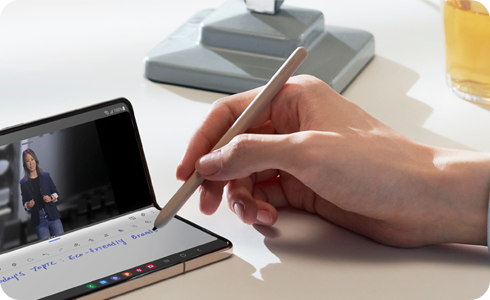
Why is my Samsung Galaxy S Pen disconnecting unexpectedly?
If your Samsung Galaxy S Pen shows a disconnection notification while in use, it's often due to incorrect app permissions or Android SOS settings affecting the Air Command app. Follow these steps to resolve the issue and restore seamless S Pen functionality.
1. Why does the S Pen disconnect on my Galaxy phone?
The S Pen disconnection issue typically occurs due to:
- Incorrect permissions for the Air Command app, especially for 'Nearby devices' and 'Physical activity'.
- Android SOS settings interfering with background app functions.
- Bluetooth interference from nearby devices or unstable connections.
2. How to fix S Pen disconnection issues
- Check Air Command app permissions:
- Open Settings on your Samsung Galaxy device.
- Go to Apps > Air Command.
- Tap Permissions and ensure 'Nearby devices' and 'Physical activity' are enabled.
- Disable Android SOS settings:
- Open Settings on your Galaxy phone.
- Navigate to Advanced Features > Advanced Settings.
- Disable Android SOS or reset app permissions to default.
- Restart your device:
- Power off your Galaxy phone completely.
- Wait 30 seconds, then power it back on.
- Reinsert the S Pen:
- Remove the S Pen from your device.
- Wait 10 seconds, then reinsert it properly.
- Check for software updates:
- Go to Settings > Software Update.
- Download and install any available updates for your Galaxy device.
3. Additional things to check
If the issue persists, consider these steps:
- Ensure no other Bluetooth devices are connected to your Galaxy phone.
- Clear the cache for the Air Command app:
- Go to Settings > Apps > Air Command.
- Tap Storage > Clear Cache.
- Test the S Pen on another compatible Samsung Galaxy device to rule out hardware issues.
4. Supported Samsung Galaxy devices
This solution applies to Samsung Galaxy devices equipped with S Pen support, including:
- Galaxy S series (S24, S25, S26)
- Galaxy Z Fold series
- Galaxy Z Flip series
5. When to contact Samsung Support
If the S Pen continues to disconnect after following these steps, your device may have an internal hardware issue. Contact Samsung Support for further assistance.
Related Samsung support topics
Thank you for your feedback!
Please answer all questions.