How to use the S22 Ultra S Pen and check its compatibility
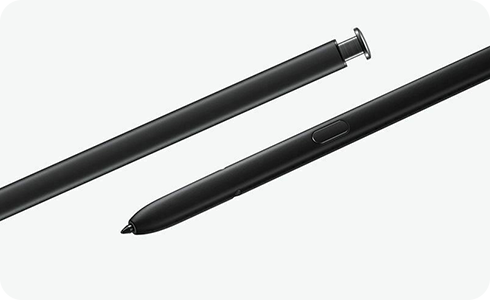
How to Use the S Pen on Samsung Galaxy S22 Ultra and Check Compatibility
The Samsung Galaxy S22 Ultra introduces a built-in S Pen, offering enhanced note-taking, drawing, and remote control capabilities. This guide explains how to use the S Pen effectively, its compatibility with other devices, and key features like Air Action and handwriting-to-text conversion.
1. What Is the S Pen on the Samsung Galaxy S22 Ultra?
The S Pen is a stylus designed specifically for Samsung Galaxy devices, offering precision and versatility. The Galaxy S22 Ultra is the first S series model to feature a built-in S Pen, making it convenient to carry and use anytime. The S Pen supports advanced features like handwriting-to-text conversion, Air Action, and remote control functionality.
2. How to Use the S Pen on the Samsung Galaxy S22 Ultra
Here are some ways to use the S Pen on your Galaxy S22 Ultra:
- Handwriting-to-Text Conversion: Write directly in the input window, and your handwriting will automatically convert to text.
- Text Extraction: Use the S Pen to capture a specific area on the screen, and the device will extract text using AI and suggest actions like copying or sharing.
- Air Action: Use gestures with the S Pen to control your device remotely, such as taking photos or navigating presentations.
- Drawing and Note-Taking: Use the S Pen for precise drawing, sketching, or jotting down notes in apps like Samsung Notes.
3. S Pen Compatibility with Other Devices
The S Pen embedded in the Galaxy S22 Ultra is designed specifically for this model and has limited compatibility with other devices. Here's what you need to know:
- The S22 Ultra's S Pen can be used in 'write-only' mode on other devices with Wacom panels, such as older Galaxy Note or Tab models.
- Air Action functionality only works with the Galaxy S22 Ultra and is not supported on other devices.
- S Pens from other devices, such as the Galaxy Note or Tab, can be used for writing on the S22 Ultra but lack Air Action support.
- The S Pen Pro supports writing and Air Action on the S22 Ultra but does not work for writing on devices like the Galaxy Z Fold 3.
4. Supported Samsung Galaxy Devices for S Pen
The S Pen is compatible with the following Samsung Galaxy devices:
- Galaxy S22 Ultra
- Galaxy Note series (Note 20, Note 20 Ultra, etc.)
- Galaxy Tab S7, S7+, and later models
- Galaxy Z Fold 3 and Z Fold 4
5. Charging and Battery Life of the S Pen
The S Pen charges automatically when inserted into the Galaxy S22 Ultra. Here are the details:
- Charging Time: A full charge takes approximately seven minutes.
- Usage Time: The S Pen offers up to 20 minutes of continuous Air Action usage and 24 hours of standby time.
- IP68 Rating: The S Pen is water-resistant, but it's recommended to remove any water before use.
6. Additional Things to Check
If you're experiencing issues with your S Pen, consider the following:
- Ensure the S Pen is properly inserted and charged.
- Check for software updates that may improve S Pen functionality.
- Verify compatibility if using the S Pen with a non-S22 Ultra device.
7. Related Samsung Support Topics
Thank you for your feedback!
Please answer all questions.