Use S Pen on Galaxy S22 Ultra and check compatibility
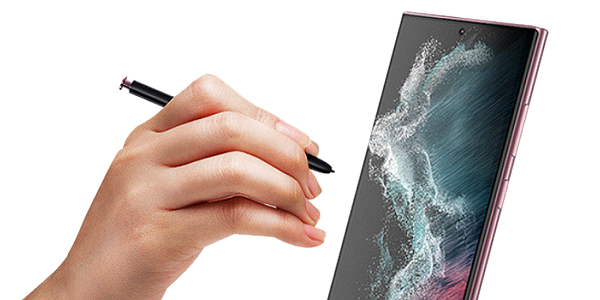
How to Use the S Pen with a Samsung Galaxy S22 Ultra
The Samsung Galaxy S22 Ultra features a built-in S Pen, making it easy to take notes, draw, and control apps remotely. This guide explains how to use the S Pen effectively, troubleshoot common issues, and ensure compatibility with other devices.
1. How to Set Up and Use the S Pen on Your Galaxy S22 Ultra
Before using the S Pen, ensure your device's software and apps are updated to the latest version. Follow these steps to update your device:
- Go to Settings.
- Tap on Software Update.
- Select Download and Install.
- Follow the on-screen instructions to complete the update.
2. Why Is the Galaxy S22 Ultra's S Pen Unique?
The Galaxy S22 Ultra is the first S Series device to include a built-in S Pen, offering seamless integration for note-taking, drawing, and remote app control. Key features include:
- Built-in Design: The S Pen is stored directly in the device, eliminating the need for a separate case.
- Matte Finish: The S Pen features a matte design for smoother writing and improved grip.
- Air Actions: Control apps remotely using Bluetooth Low Energy (BLE) connectivity.
3. How to Charge the S Pen
The S Pen requires charging to enable remote control features like Air Actions. Follow these steps to charge the S Pen:
- Insert the S Pen into the slot on your Galaxy S22 Ultra.
- Charging will begin automatically.
- If Air Actions are disabled, the S Pen will only charge when the device is plugged in.
4. How to Use Air Actions with the S Pen
Air Actions allow you to control apps remotely using the S Pen. Here's how to use this feature:
- Take Photos: Press and hold the S Pen button to capture a series of images.
- Change Shooting Modes: Move the S Pen left or right while holding the button.
- Switch Cameras: Press the S Pen button twice.
Note: The S Pen must be charged to use Air Actions. If the S Pen disconnects, reinsert it into the slot to reconnect.
5. How to Customize S Pen Features
You can customize the S Pen to launch specific apps or features. Follow these steps:
- Open the Settings menu.
- Navigate to Advanced Features > S Pen > Air Actions.
- Select the app or feature you want to launch with the S Pen.
6. What to Do If the S Pen Has Connection Issues
If the S Pen disconnects frequently, try these troubleshooting steps:
- Insert the S Pen into the slot to reconnect.
- Open the Air Actions settings.
- Tap More Options (three vertical dots) and select Reset S Pen.
7. Supported Samsung Galaxy Devices for S Pen Compatibility
The S Pen from the Galaxy S22 Ultra is designed specifically for this device. Here's how it works with other Samsung devices:
- Galaxy S22 Ultra: Full functionality, including Air Actions and built-in storage.
- Galaxy Note Series: Writing features only; Air Actions are not supported.
- Galaxy Tab Series: Writing features only; Air Actions are not supported.
- Galaxy Z Fold3: Not compatible.
- S Pen Pro: Writing and Air Actions are supported when switched to S Pen mode.
8. Additional Things to Check
Ensure optimal S Pen performance by checking these factors:
- Software Updates: Regularly update your device to ensure compatibility with the latest S Pen features.
- Cleanliness: Wipe the S Pen and slot with a soft cloth to remove debris.
- Battery Life: Ensure the S Pen is charged before using Air Actions.
Related Samsung Support Topics
Thank you for your feedback!
Please answer all questions.