How to take a screenshot on a Galaxy device
How to Take a Screenshot on Samsung Galaxy Devices
Taking a screenshot on your Samsung Galaxy device is quick and easy using various methods. Whether you need to capture a game achievement, save an important message, or share a webpage, this guide covers all available options for your Galaxy phone.
1. How to Take a Screenshot Using Physical Buttons
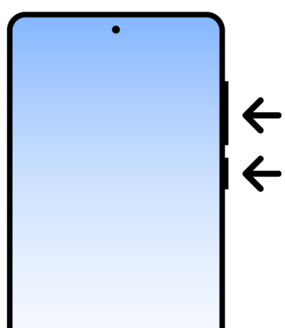
Most Samsung Galaxy devices allow you to take a screenshot by pressing the power and volume-down buttons simultaneously.
- Press and hold the Power key (usually on the right side) and the Volume Down key (usually on the left side) at the same time.
- Release both buttons when you see the screen flash or hear a shutter sound, indicating the screenshot has been taken.
- Note: On some Galaxy models, the button positions may vary. Check your device's manual for exact key locations.
2. How to Take a Screenshot Using Palm Swipe
If you prefer not to use physical buttons, you can enable the palm swipe feature to take a screenshot.
- Go to Settings and search for "Palm swipe to capture."
- Toggle the switch to enable the feature.
- Swipe the edge of your hand horizontally across the screen to capture a screenshot.
- Note: This feature may not be available on all Galaxy devices.
3. How to Take a Scroll Screenshot
For long web pages or documents, use the scroll capture feature to take a full-page screenshot.
- Take a regular screenshot using the button combination or palm swipe method.
- After the screenshot is taken, tap the "Scroll capture" option that appears on the screen.
- Continue tapping "Scroll" until the entire content is captured.
4. How to Take a Screenshot Using Voice Commands
If you have Bixby or Google Assistant enabled, you can take a screenshot using voice commands.
- Activate Bixby or Google Assistant by saying "Hey Bixby" or "Hey Google."
- Say "Take a screenshot" to capture the current screen.
5. How to Take a Screenshot Using the S Pen
Galaxy devices with an S Pen can use the Screen Write feature to take a screenshot.
- Remove the S Pen from your device.
- Tap the Screen Write option in the Air Command menu.
- Draw a line on the screen to capture the area you want, or tap the screen to capture the entire display.
Supported Samsung Galaxy Devices
These methods work on most Samsung Galaxy devices, including the Galaxy S24, Galaxy S25, Galaxy S26, Galaxy Z Fold, Galaxy Z Flip, and Galaxy A series. Check your device's settings for specific features.
Related Samsung Support Topics
Thank you for your feedback!
Please answer all questions.