How to See Which Apps Use Your Camera or Microphone
How to know which apps are using your camera or microphone on Samsung Galaxy
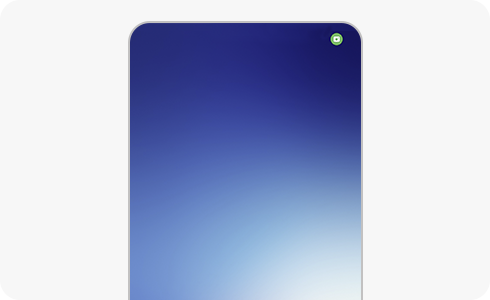
To protect your privacy, Samsung Galaxy devices display a green indicator when an app accesses your camera or microphone. Tap the indicator to see which app is using these features and manage permissions from Settings.
1. How does Samsung Galaxy show camera or microphone usage?
The Samsung Galaxy operating system includes a real-time privacy feature that shows a green dot on the notification panel when an app uses your camera or microphone. This helps you stay informed about app behavior and maintain control over your personal data.
- The green dot appears in the top-right corner of your screen.
- Tap the green dot to view the app currently using the camera or microphone.
2. How to check which apps have camera or microphone access?
- Open the Settings app on your Samsung Galaxy device.
- Scroll down and tap on Privacy and Safety.
- Select Permission Manager.
- Choose either Camera or Microphone to see the list of apps with access.
- Review the list and revoke access for apps you don't want to use these features.
3. Additional things to check
- Ensure your Samsung Galaxy device is running the latest software version for optimal privacy features.
- Check if third-party apps request unnecessary permissions during installation.
- Regularly review app permissions to maintain control over your data.
4. Supported Samsung Galaxy devices
This feature is available on most Samsung Galaxy devices, including the Galaxy S24, Galaxy S25, Galaxy Z Fold, Galaxy Z Flip, and Galaxy A series. Ensure your device is updated to the latest software version for full functionality.
5. Related Samsung support topics
Thank you for your feedback!
Please answer all questions.